

How to connect Tunnexa, and what the VPN connection request means
Tap the big button on the home screen to connect, and tap it again to disconnect. The first time, Android shows a connection request asking whether you trust Tunnexa to run a VPN. Tap OK. After that, it's one tap.
 One prompt, the first time only
- Android's own safety check
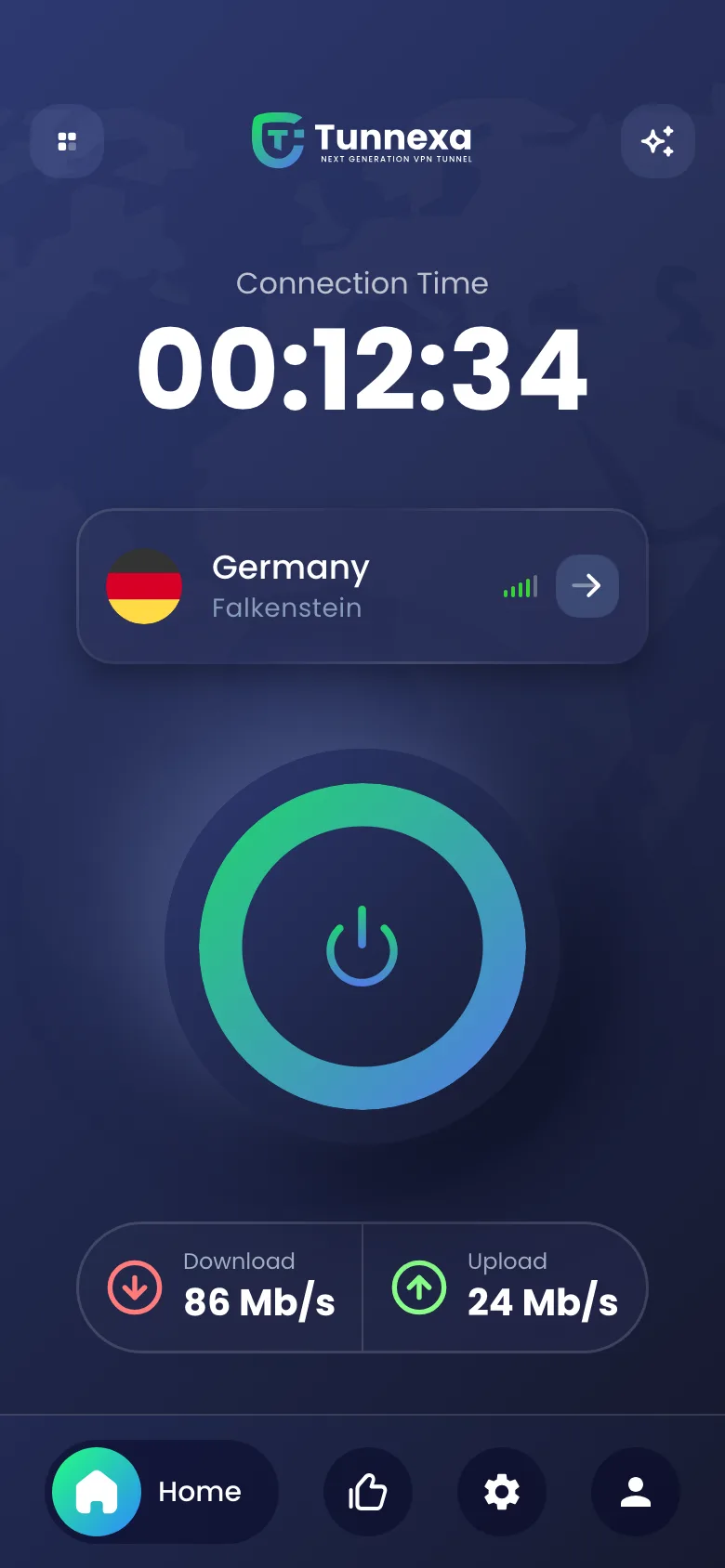
Connecting is a single tap once Android has let Tunnexa run a VPN. This article covers that tap, the one-time permission, and the messages you might see along the way.
Connect and disconnect
On the home screen, tap the power button labeled Tap To Connect. The status reads Connecting…, then the ring turns green and the Connection Time timer starts. You’re in the tunnel.
To disconnect, tap the button again. If a connection is taking too long, tapping while it says Connecting… cancels it.
The VPN connection request
The first time you connect, Android shows a connection request. Its wording sounds alarming: it says Tunnexa wants to set up a VPN connection that lets it monitor network traffic, and that you should only accept if you trust the source.
Every VPN app gets exactly this message. Android shows it because a VPN, by design, carries all your phone’s traffic, so Android wants you to agree to that once. Tap OK and Tunnexa can connect from then on.
What we do with that traffic is simple: we pass it on and don’t record it. Our no-logs policy explains what we never keep.
On Android 13 and later, a notification prompt comes first. Tunnexa connects whether you allow notifications or not.
If you tapped Cancel
Nothing breaks. Tap Tap To Connect again and Android asks again.
If no request appears and nothing connects
This usually means another VPN app is set as Android’s Always-on VPN. While it holds that setting, Android won’t let a second app start a VPN. Here’s how to move Always-on VPN to Tunnexa.
One VPN at a time
Android runs one VPN at a time. If you connect another VPN app, Android disconnects Tunnexa, and the other way round. The key or VPN icon in your status bar shows that a VPN is on, but not which one, so check the Tunnexa home screen if you’re unsure.
Changing location or protocol
You can switch location while connected: tap the server card, pick another location, and Tunnexa reconnects by itself.
Protocols are different. You have to disconnect first. If you try while connected, Tunnexa shows “Disconnect VPN?” with Continue and Cancel. Continue takes you to the home screen, where you tap the button to disconnect, then go back to Settings › Select Protocol. Choosing a protocol has the details.
Messages you might see
- “No Internet Connection” means the phone itself can’t get online. Read how to fix the No Internet message.
- “Connection limit reached” means your account is connected on too many devices at once. See Connected Devices.
- “This server doesn’t support” followed by a protocol name means that location doesn’t offer it. Pick another location or protocol.
- “Sign In to use” followed by a protocol or feature means it needs a free account. Tap Sign In; there’s nothing to pay.
- “The connection to the server was lost. Please reconnect.” Tap the button to connect again. If it keeps happening, try another location.
Still not connecting? Work through the four connection fixes in the Help center.
Connecting questions
Still unsure? Write to us at support@tunnexa.com.
Why does Android say Tunnexa can monitor my network traffic?
Android shows that warning for every VPN app, because a VPN carries all of the phone's traffic. Tunnexa passes your traffic on without recording it. Our no-logs policy lists what we never keep.
What is the key icon in my status bar?
Android shows it while any VPN is connected. On some phones it's a small VPN label instead. It disappears when you disconnect.
Can I use Tunnexa and another VPN at the same time?
No. Android runs one VPN at a time, so connecting one disconnects the other.
Why doesn't the VPN connection request appear?
If Tunnexa has connected before, Android remembers your OK. If it never appeared and Tunnexa won't connect, another app probably holds Always-on VPN. Here's how to switch it.