

Skip to content
Tunnexa

VPN auto connect for Android, on your terms

Auto Connect saves you hunting for the button. Choose "When the app opens" and Tunnexa connects as soon as you open it. Choose "When the phone starts" and, after a restart, Tunnexa puts a "Tap to connect" notification in your shade, so you're one tap from protected. Both are off by default, and Auto Connect is free with a Tunnexa account.

  • Free with a Tunnexa account
  • Off until you turn it on
  • Two triggers, your choice
Connected · Germany
How it works

Connect automatically on open, or one tap after a restart

Turn on one, the other, or both. Each works on its own.

Switch 1

When the app opens

  1. You open Tunnexa Tap the icon the way you always do.
  2. Tunnexa connects on its own To the server you chose last, without touching the big button.
  3. Connected The ring turns green. Connected · Germany

It runs once each time the app starts. If you disconnect, Tunnexa stays disconnected and doesn't fight you.
Switch 2

When the phone starts

  1. Your phone restarts Tunnexa waits for Android to finish starting up.
  2. A notification appears It names the server it's ready to use.
    Tunnexa is readyTap to connect to Germany
  3. You tap it Tunnexa opens and connects.
  4. Connected One tap after a restart, instead of opening the app and finding the button.

Why the tap? Android doesn't let apps open themselves at startup, so Tunnexa gets everything ready and leaves the last step to you.

Which one

Pick the switch that fits your day

Auto Connect is about convenience. Here is how to match it to your habits.

Which Auto Connect switch to use for each habit
Use
You open Tunnexa whenever you go online When the app opens
You restart your phone and forget the VPN When the phone starts
You hop between cafés, trains and hotels When the app opensWhen the phone starts
You never want traffic to leave without the VPN Kill Switch & Always On →

Auto Connect doesn't stop apps using the internet before you're connected. If you're often on shared networks, turn on both switches and read our guide to staying safe on public Wi-Fi.

Setup

How to turn on VPN auto connect in Tunnexa

1

Sign in for free

Auto Connect needs a free account. In Settings, tap Sign in or create a free account.

2

Connect once by hand

Tap To Connect and allow Android's VPN request. Auto Connect never shows that prompt for you.

3

Open Settings › Auto Connect

It's in the Connection group. Tap it and the row opens to show two switches.

4

Turn on one or both

The row now says On. Auto Connect uses the server you picked last, so choose that first.

Good to know

When Auto Connect won't connect

It's built to never surprise you. These are the times it stays quiet.

You're signed out

Auto Connect is a free-account feature. Guests connect with the button.

You haven't allowed the VPN yet

Connect once by hand first. Auto Connect never pops up Android's permission request.

No server is chosen

At startup it needs a server to offer you. Pick one once and it remembers.

You're already connected

Nothing to do. It won't reconnect or switch servers.

You disconnected yourself

It runs once per launch, so it respects your choice.

The moments before your tap

After a restart, apps use your normal connection until you tap the notification.

Want Android itself to keep the VPN on from startup? That's Always-on VPN, one of the system tools covered in our guide to using a VPN on Android.

Free account feature

Auto Connect is free with an account

The first time you open Tunnexa, you can tap Skip and connect as a guest, or sign in. Guests get the free servers and DNS leak protection. Auto Connect needs a free account, which takes an email code, or one tap with Google or Apple. No card, no trial.

  1. 01In Tunnexa, open Settings and tap Sign in or create a free account
  2. 02Enter your email and type in the code we send, or choose Google or Apple
  3. 03Back in Settings, tap Auto Connect and pick your switches
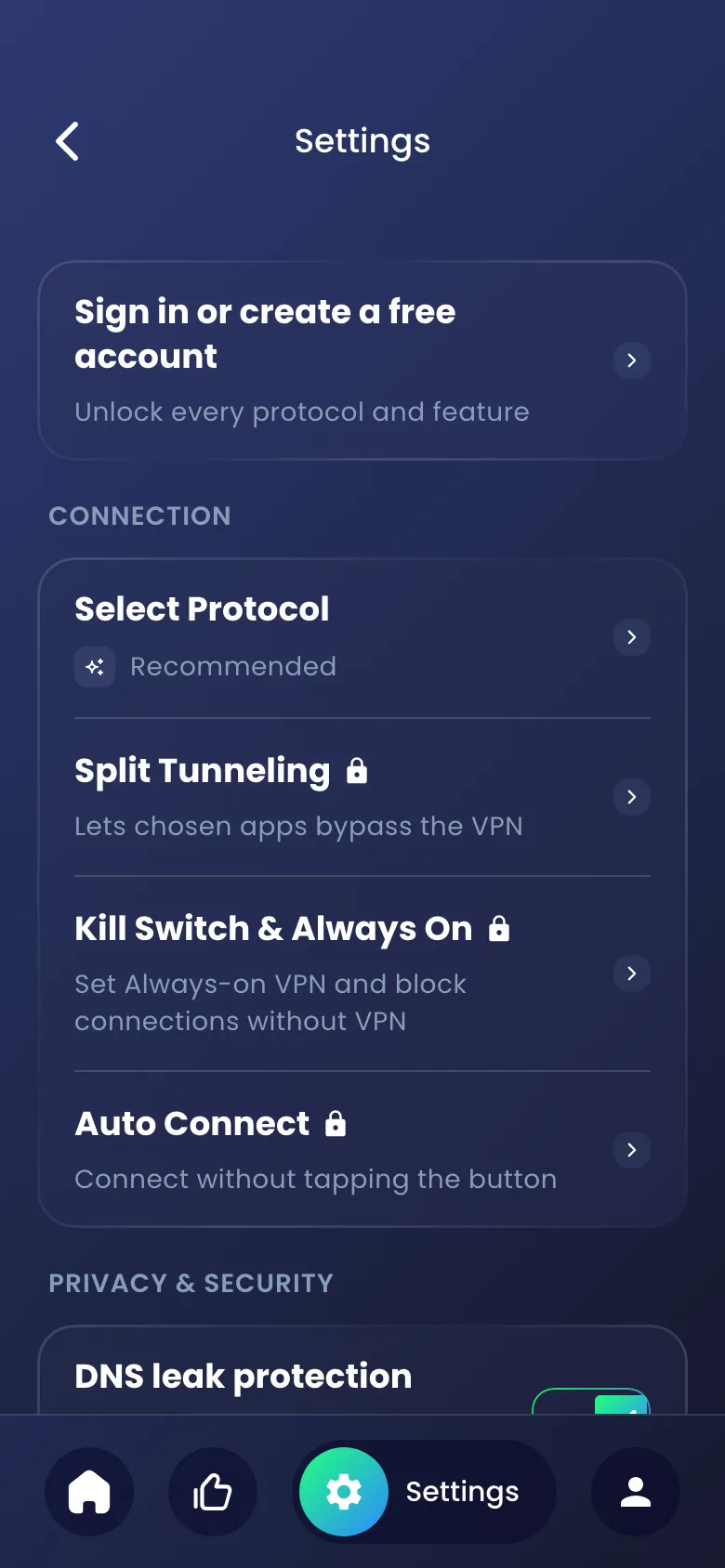
Tunnexa Settings as a guest, with a lock next to Auto Connect
Sign In to use Auto Connect Sign In
FAQ

Auto connect questions

Still unsure? Write to us at support@tunnexa.com.

How do I make my VPN connect automatically on Android?

In Tunnexa, sign in for free, open Settings › Auto Connect and turn on When the app opens, When the phone starts, or both. Android's own Always-on VPN is the other route.

Can a VPN start automatically when my phone turns on?

With When the phone starts on, Tunnexa shows a "Tunnexa is ready" notification after a restart. Tap it and you're connected. For a VPN that Android keeps on from startup, use Always-on VPN.

Why didn't Tunnexa connect when I opened it?

Auto Connect only runs when you're signed in, disconnected, and have allowed the VPN connection once before. It also runs once per launch, so it won't reconnect after you disconnect yourself.

What's the difference between Auto Connect and Always-on VPN?

Auto Connect is a Tunnexa convenience: it connects when the app opens, or leaves you one tap away after a restart. Always-on VPN is an Android setting that keeps a VPN running, and with Block connections without VPN it stops traffic while the VPN is down. That pair is our VPN kill switch.

Is Auto Connect free?

Yes, with a free Tunnexa account. Both switches start off.