

Always-on VPN is set for another app? Move it to Tunnexa
Android lets only one app be the Always-on VPN. If another VPN app holds it, turn Always-on VPN off for that app in your phone's VPN settings, then turn it on for Tunnexa. Until you do, Tunnexa may not be able to connect at all.
 One always-on VPN per phone
- Free with a Tunnexa account
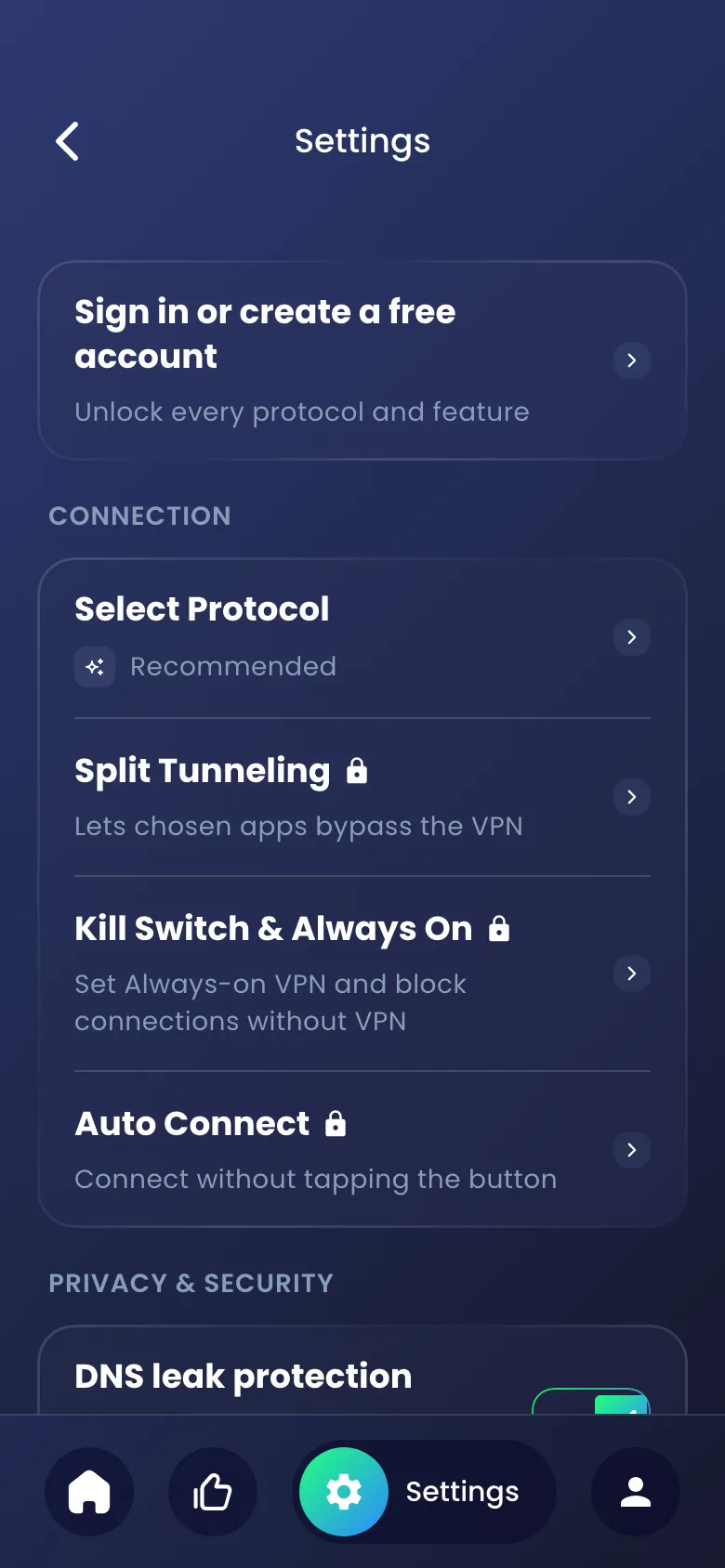
Always-on VPN is an Android setting that keeps one VPN app running. Paired with Block connections without VPN, it becomes your VPN kill switch. The catch is that Android allows one always-on VPN at a time, so a VPN app you used before can quietly stand in Tunnexa’s way.
Signs that another app holds Always-on VPN
- You tap Tap To Connect, Android never shows its VPN connection request, and Tunnexa doesn’t connect.
- You open Android’s VPN settings and another app’s options show Always-on VPN switched on.
- Your phone has no internet at all while that other VPN is off. That’s its Block connections without VPN setting at work.
Move Always-on VPN to Tunnexa
- Open Android’s VPN settings. In Tunnexa, sign in, open Settings and tap Kill Switch & Always On; it takes you straight there. You can also go through your phone’s Settings: on many phones it’s under Network & internet › VPN, and on Samsung under Connections › More connection settings › VPN.
- Tap the gear next to the other VPN app. Turn off Always-on VPN. If Block connections without VPN was on, it goes off with it.
- Go back and tap the gear next to Tunnexa. Turn on Always-on VPN.
- Want the kill switch too? Turn on Block connections without VPN. Android may ask you to confirm.
- Connect. Open Tunnexa and tap Tap To Connect. If Android shows the connection request, tap OK.
Menu names vary a little between phone makers and Android versions, but the two switches are always called Always-on VPN and Block connections without VPN.
Why Android works this way
A phone has one VPN tunnel at a time. Always-on VPN tells Android which app owns that tunnel, and Block connections without VPN tells Android to stop all traffic whenever that app’s tunnel is down. So while another app holds both switches, Android blocks everything outside that app’s tunnel, including Tunnexa reaching its own servers.
Uninstalling the other VPN app also clears its Always-on setting.
When you can’t change it
On a phone managed by your work or school, an administrator can set Always-on VPN for a company app and lock it. The switches then appear grayed out, and only your IT team can change them. Using Tunnexa on that phone may also break their rules, so ask first.
Once Tunnexa is always-on
With Block connections without VPN on, disconnecting Tunnexa leaves your phone offline until you connect again or turn the setting off. That’s the kill switch doing its job, but it catches people out. If you’d rather just connect when the app opens, Auto Connect is the lighter option.
Always-on VPN questions
Still unsure? Write to us at support@tunnexa.com.
Always-on VPN is already set for another app. What do I do?
Android allows only one app to use Always-on VPN. In your phone's VPN settings, turn it off for the other app, then turn it on for Tunnexa.
Can two VPN apps be always-on at the same time?
No. Android keeps one always-on VPN per phone, and only one VPN can be connected at a time.
Why can't I change Always-on VPN on my phone?
If the switches are grayed out, your phone is probably managed by your work or school, and an administrator has locked the setting. Only they can change it.
Why do I have no internet after disconnecting the VPN?
Block connections without VPN is on, so Android stops all traffic while the VPN is down. Connect again, or turn the setting off in Android's VPN settings.