

How to set up Tunnexa and connect for the first time
Install Tunnexa from Google Play, open it, and tap Skip to stay a guest or sign in for free. Then tap Tap To Connect and allow Android's VPN connection request once. It takes a couple of minutes, and there's nothing to pay.
 Android 7.0 or later
- No account needed to start
The short version, in three steps
-
1
Install and open Tunnexa
It runs on Android 7.0 and later. Get the free app from Google Play.
-
2
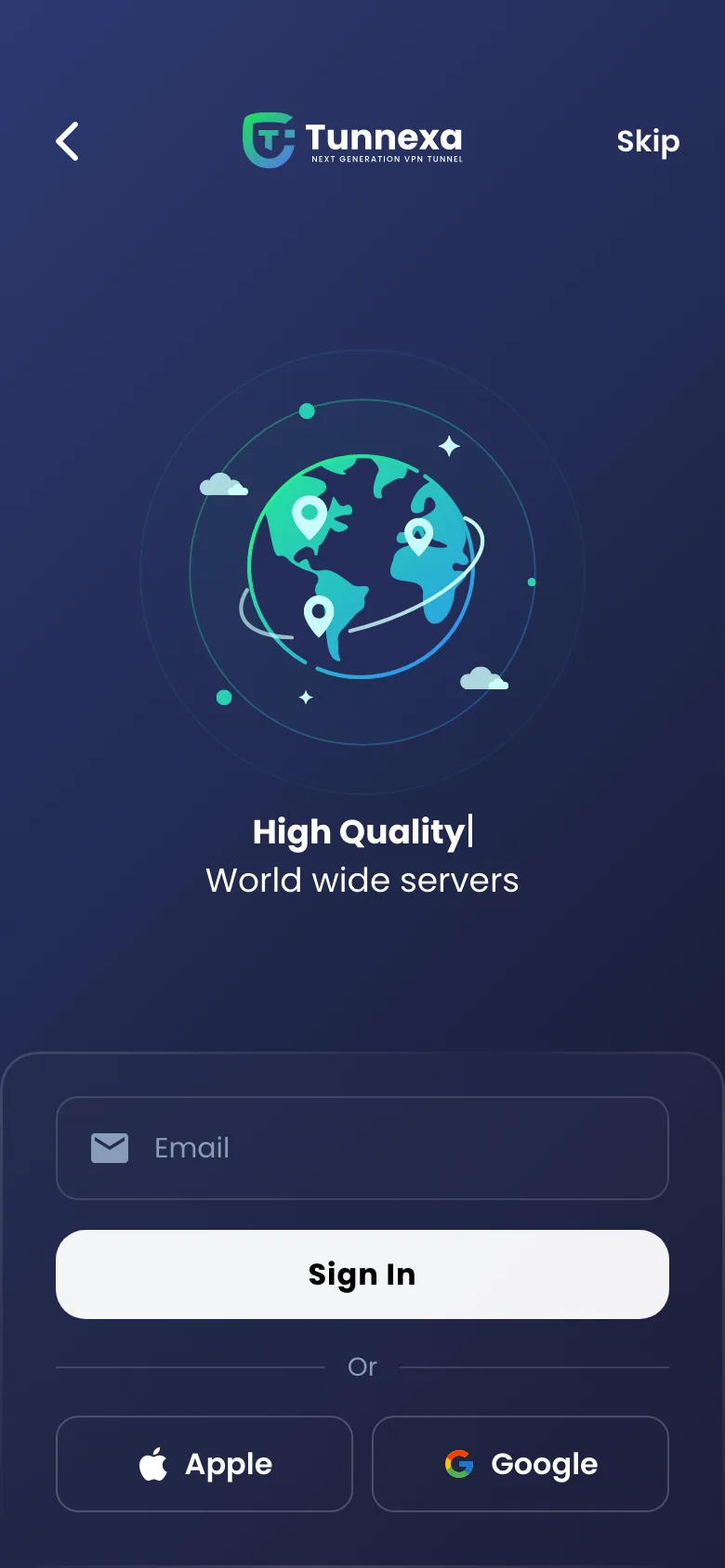
Tap Skip, then Tap To Connect
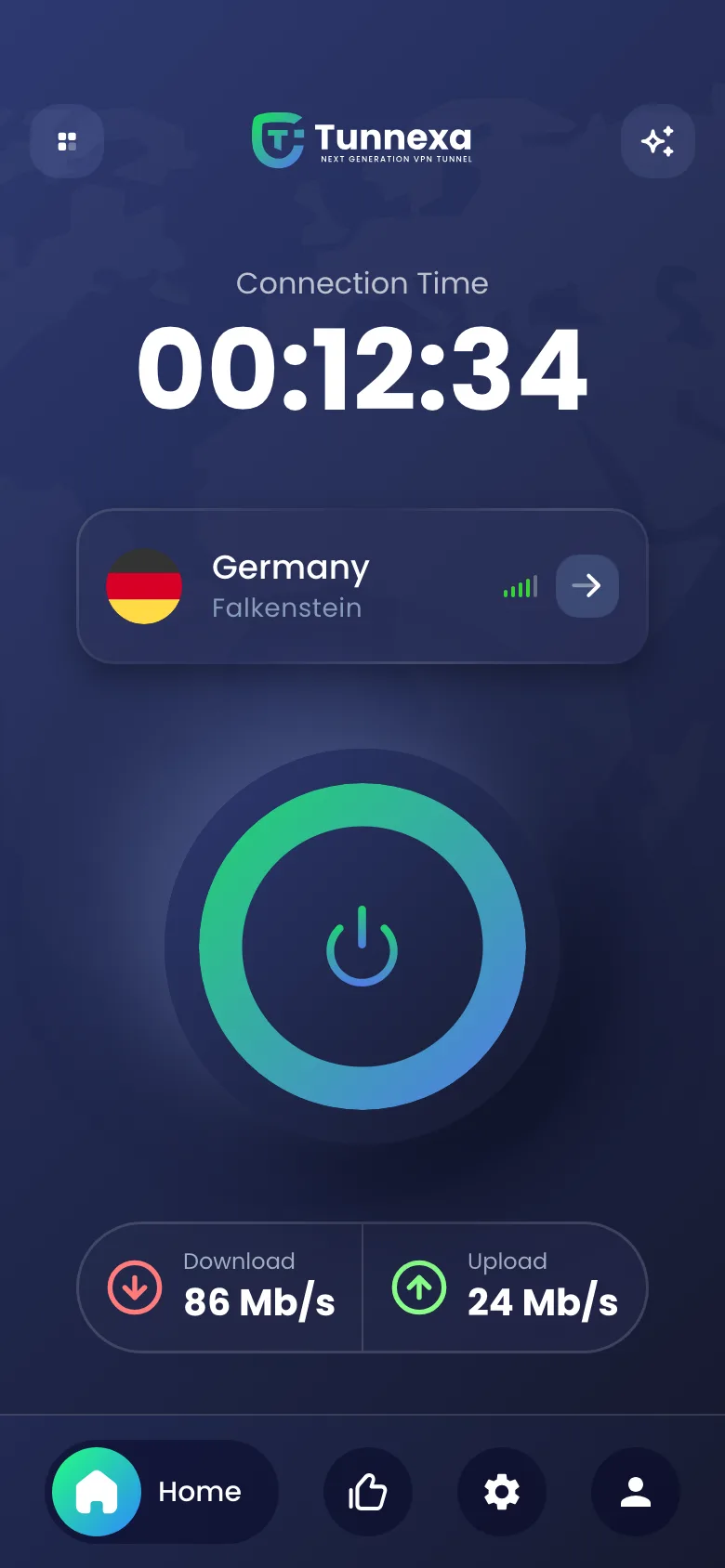
Android asks once to allow the VPN connection. Tap OK and the ring turns green.
-
3
Sign in later, if you like
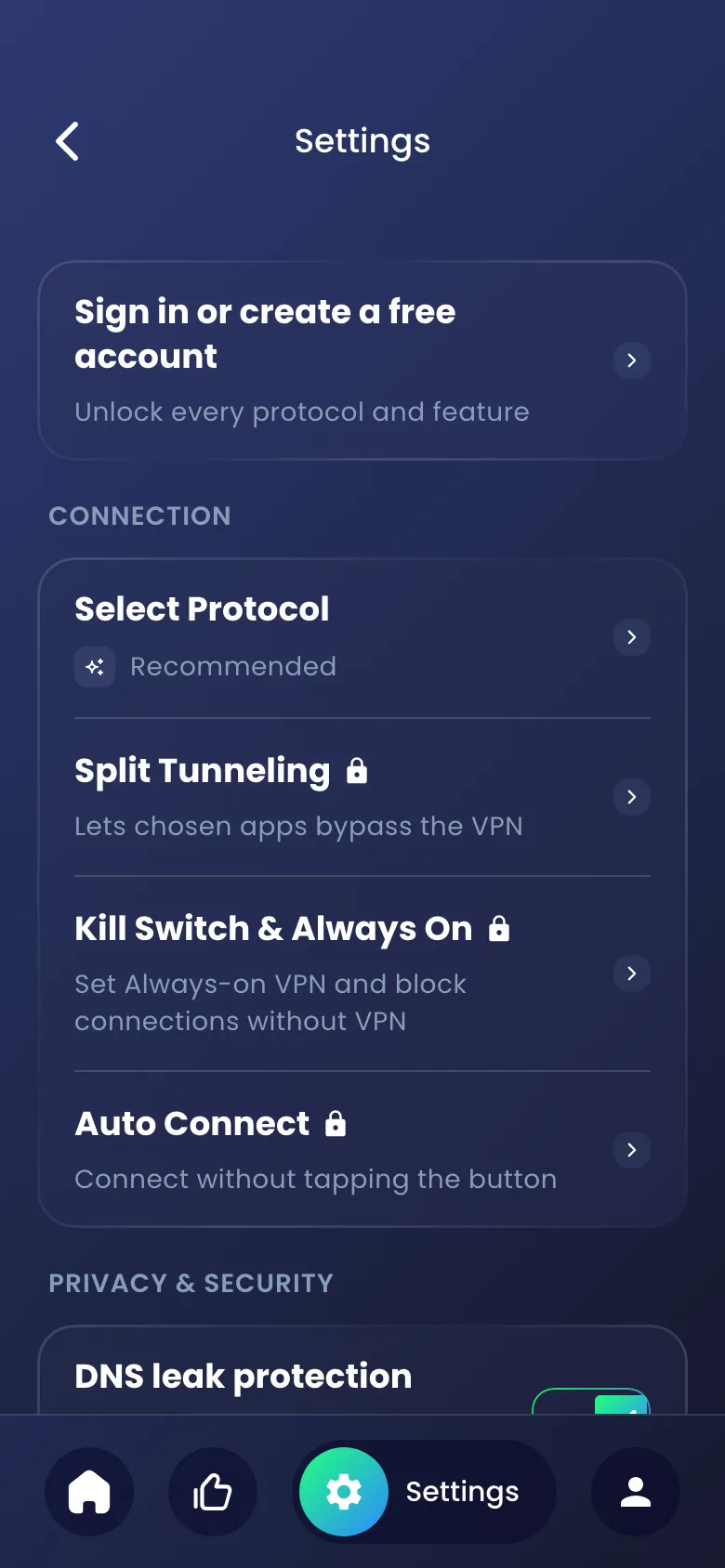
A free account from Settings adds every protocol and the extra privacy tools.
Setting up Tunnexa means three things: installing it, deciding whether to sign in, and allowing one Android prompt. Here is each step, with the labels you’ll see in the app.
Before you start
You need a phone or tablet with Android 7.0 or later. Tunnexa is only on Google Play, so there’s no APK to sideload, and there are no iPhone or desktop versions.
You don’t need an account, a card or an email address to connect.
1. Install Tunnexa from Google Play
Search for Tunnexa VPN in the Play Store, or use the link on our download page. Tap Install, then Open.
2. Skip, or sign in for free
The first screen invites you to sign in, with an Email field, a Sign In button, and Apple and Google buttons. You can tap Skip in the top right corner instead.
- As a guest you get the free locations, the Recommended, WireGuard and OpenVPN UDP protocols, and DNS leak protection, which is on from the start.
- With a free account you also get OpenVPN TCP, AmneziaWG and Stealth, plus Kill Switch & Always On, Auto Connect, Ad & Tracker Shield and Split Tunneling.
Not sure yet? Skip for now. You can sign in later from Settings, where the top card says “Sign in or create a free account”. Read how signing in works.
3. Tap To Connect
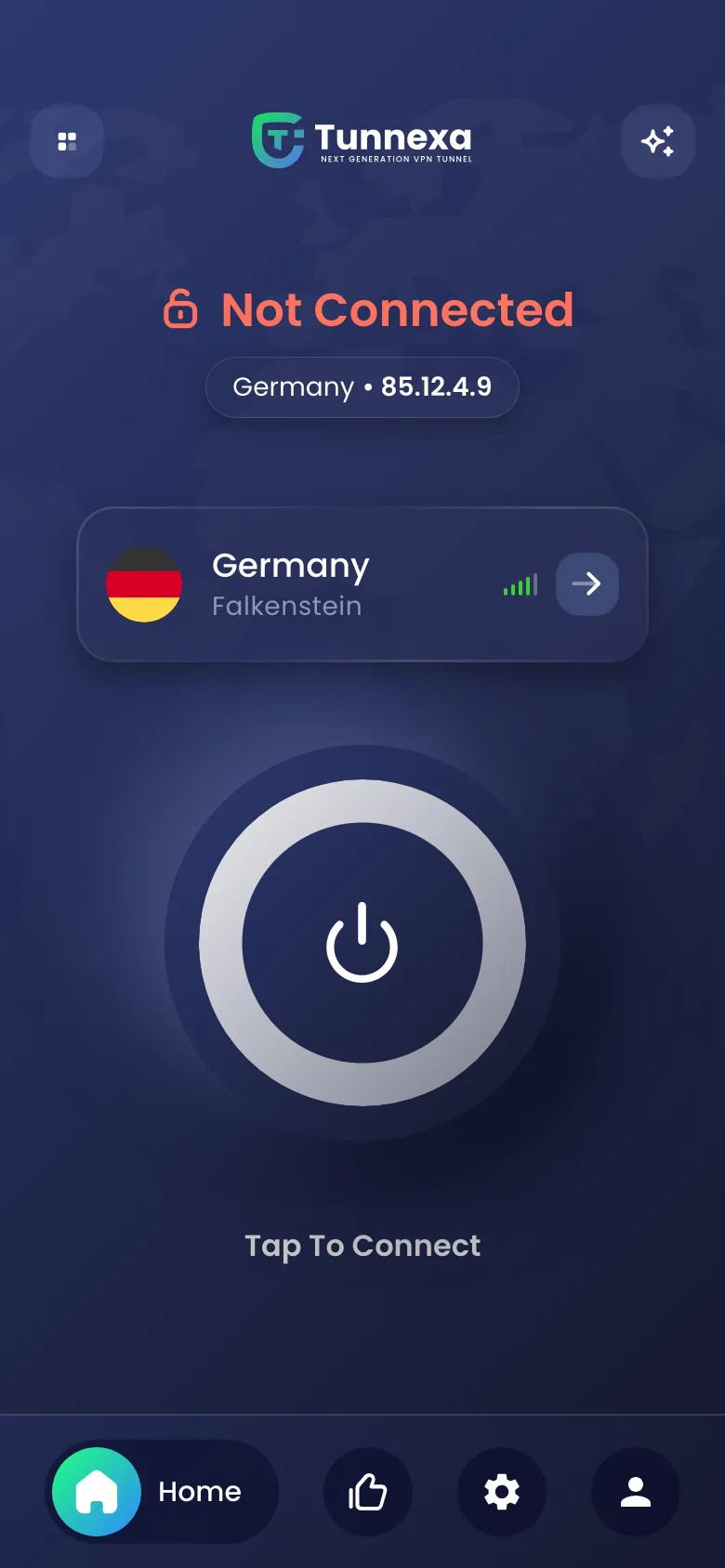
The home screen shows “Not Connected”, the location Tunnexa picked for you, and a big power button labeled Tap To Connect. Tap it.
On Android 13 and later, Android first asks whether Tunnexa may send notifications. The VPN works whichever you choose.
Next comes Android’s VPN connection request. Every VPN app has to ask for it. Tap OK, and you won’t see it again. Here’s what the connection request means.
The status changes to Connecting…, then the ring turns green and a connection timer starts. Android also shows a small key or VPN icon in the status bar while you’re connected.
4. Choose another location, if you like
Tap the server card above the button to open Select Server. Each location shows its ping in milliseconds, and lower usually means closer. Tap one to use it, or tap the star to keep it under Favorites. If you’re already connected, Tunnexa reconnects to the new location by itself.
What to set up next
- Leave the protocol on Recommended unless a network gives you trouble. Choosing a protocol explains when to switch.
- With a free account, turn on the kill switch, so nothing leaves your phone if the tunnel drops.
- If a banking app refuses to open on the VPN, let it skip the tunnel with Split Tunneling.
If it doesn’t connect
Try another location first, then another protocol. The four connection fixes in the Help center cover the rest. If you see “No Internet Connection”, the problem is your phone’s connection, and this article clears it up.
Getting started questions
Still unsure? Write to us at support@tunnexa.com.
Do I need an account to use Tunnexa?
No. Tap Skip on the first screen and connect as a guest. A free account adds three more protocols and the extra privacy tools, and you can sign in any time from Settings.
Which Android version does Tunnexa need?
Android 7.0 or later, on phones and tablets. There are no iPhone, desktop or browser versions.
Why does Android ask me to allow a VPN connection?
Android asks before any app can set up a VPN. Tap OK once, and Tunnexa can connect from then on.
Is Tunnexa free?
Yes. Guests and free accounts pay nothing, and we never ask for payment details. Premium is coming soon with more locations and Specialty servers. Get notified when it launches.