

Which Tunnexa protocol should I use? Start with Recommended
Keep Recommended unless something goes wrong, and Tunnexa picks for you. Switch to OpenVPN TCP on strict Wi-Fi at work, school or a hotel, and to AmneziaWG or Stealth when a network blocks VPNs. To switch, disconnect, then open Settings › Select Protocol.
 Three protocols free for guests
- All six with a free account
A protocol is the method Tunnexa uses to build your encrypted tunnel. They all protect your traffic. What differs is how quick they are and how easily a strict network notices them. Most people never need to change it.
The six protocols in plain words
- Recommended lets Tunnexa choose the right protocol for you. For guests, it picks WireGuard or OpenVPN UDP.
- WireGuard is our quickest option, great for daily browsing and streaming. Free for guests.
- OpenVPN UDP is a trusted classic. Try it when your connection keeps dropping. Free for guests.
- OpenVPN TCP works on strict Wi-Fi at work, school or hotels. It’s a little slower.
- AmneziaWG is WireGuard with reshaped traffic, so networks that ban VPNs find it harder to spot.
- Stealth blends in as normal website traffic. Use it when nothing else connects.
OpenVPN TCP, AmneziaWG and Stealth need a free account. In the list they show a small lock, and tapping one opens “Sign In to use” with a Sign In button. There’s nothing to pay.
How to switch protocol
- Disconnect on the home screen. Tunnexa only changes protocol while you’re disconnected.
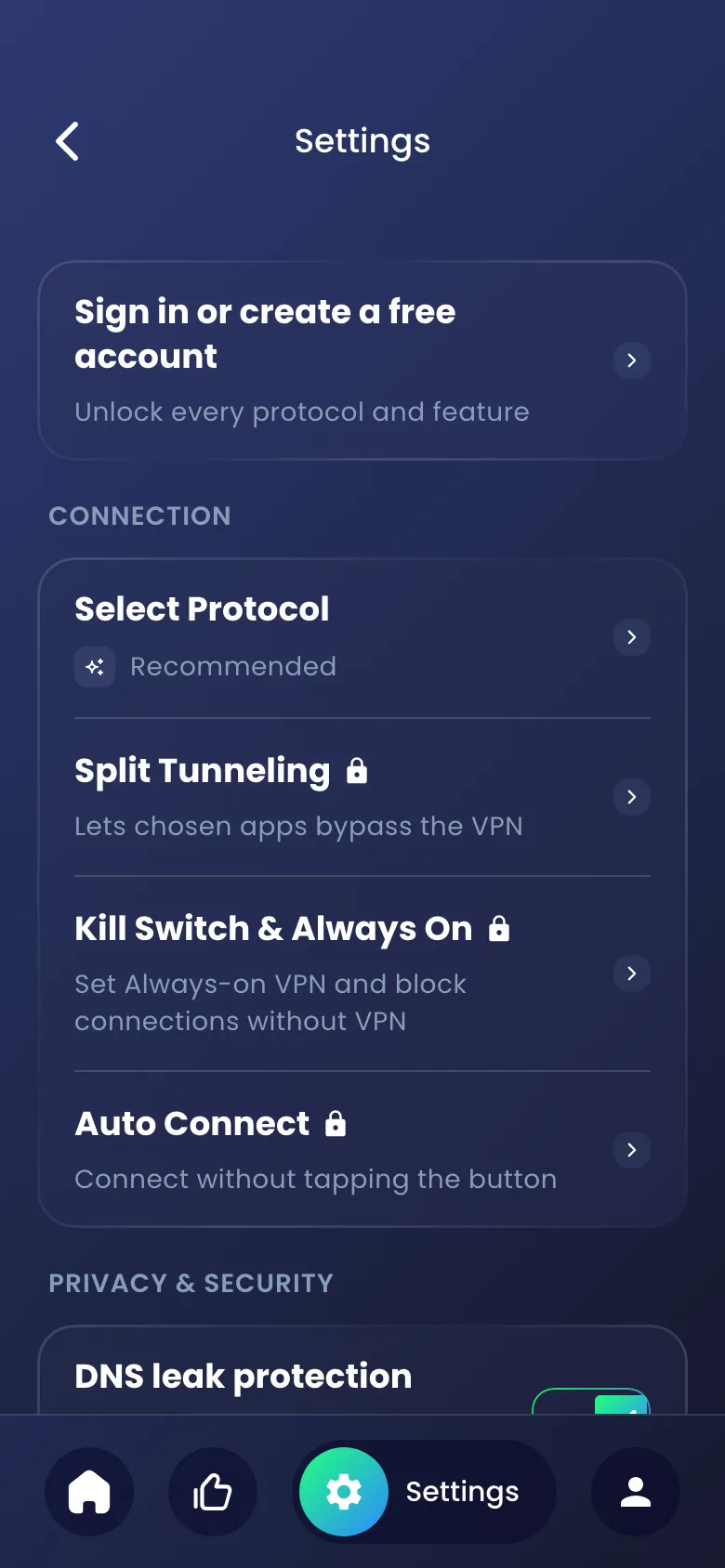
- Open Settings from the bottom bar and tap Select Protocol, the first row under Connection.
- Tap the protocol you want. The selected one is marked.
- Go back to the home screen and tap Tap To Connect.
If you forget to disconnect, Tunnexa asks “Disconnect VPN?”. Tap Continue to go to the home screen, disconnect there, then come back and pick again.
A simple order to try
When a connection misbehaves, change one thing at a time, and try another location before another protocol.
- Stay on Recommended.
- Try WireGuard if you’d like to choose yourself.
- If it keeps dropping, try OpenVPN UDP.
- On café, hotel, campus or office Wi-Fi that won’t connect, try OpenVPN TCP.
- If the network blocks VPNs on purpose, try AmneziaWG, then Stealth.
Once things work, think about going back up the list. The quicker protocols make day-to-day browsing feel lighter.
When a location doesn’t offer a protocol
Not every location runs every protocol. If you see “This server doesn’t support” and a protocol name, pick another location or another protocol. Select Protocol also only lists protocols that at least one location offers.
What no protocol can do
No protocol gets through every network. Detection varies, and a determined network can still block a connection. The network owner’s rules still apply, and VPN rules differ by country. Read more about networks that block VPNs and VPNs on school and work Wi-Fi.
Protocol questions
Still unsure? Write to us at support@tunnexa.com.
What is the best VPN protocol for Android?
There isn't one best protocol for every network. WireGuard is our quickest and the right everyday choice. OpenVPN TCP gets through strict Wi-Fi more often, and AmneziaWG and Stealth are for networks that block VPNs. If you're not sure, keep Recommended.
Why can't I change the protocol while connected?
Tunnexa builds the tunnel with one protocol, so it needs to start a fresh connection with the new one. Disconnect on the home screen first, then pick the protocol in Settings › Select Protocol.
Why are some protocols locked?
OpenVPN TCP, AmneziaWG and Stealth need a free account. Sign in with an email code, Google or Apple and all six are yours, with nothing to pay.
Is OpenVPN TCP slower than UDP?
A little, usually. TCP checks every packet arrives, which helps it get through strict networks but adds some delay. Use UDP when you can and TCP when you have to.