


It only works while it's on
Turn off Block connections without VPN, or make another VPN app always-on, and the safety net is gone. Android allows one always-on VPN at a time.
A VPN kill switch stops your phone sending anything while the VPN is down, so a dropped tunnel can't expose your traffic. In Tunnexa, Kill Switch & Always On takes you straight to Android's VPN settings, where you turn on Always-on VPN and Block connections without VPN. It's free with a Tunnexa account.
 Free with a Tunnexa accountUses Android's own controlsSet it once
 Tunnexa
Android · VPN
Tunnexa
Android · VPN
VPN connections drop for ordinary reasons. You walk out of Wi-Fi range, the train goes underground, the phone hops from Wi-Fi to mobile data. For those few seconds your apps keep talking. A kill switch decides where that traffic goes: out in the open, or nowhere.
Apps talk to the internet through Tunnexa. The café network only sees scrambled data.
Your apps don't wait. They reconnect over the Wi-Fi you're on, from your real IP address, until the VPN is back.
Block connections without VPN stops every connection outside the tunnel. Apps pause until Tunnexa reconnects.
It matters most on public Wi-Fi in cafés, hotels and airports, where connections drop often and the network isn't yours.
Tunnexa doesn't build its own kill switch on top of Android. It hands the job to the system, like everything else in our VPN for Android. You only set it up once.
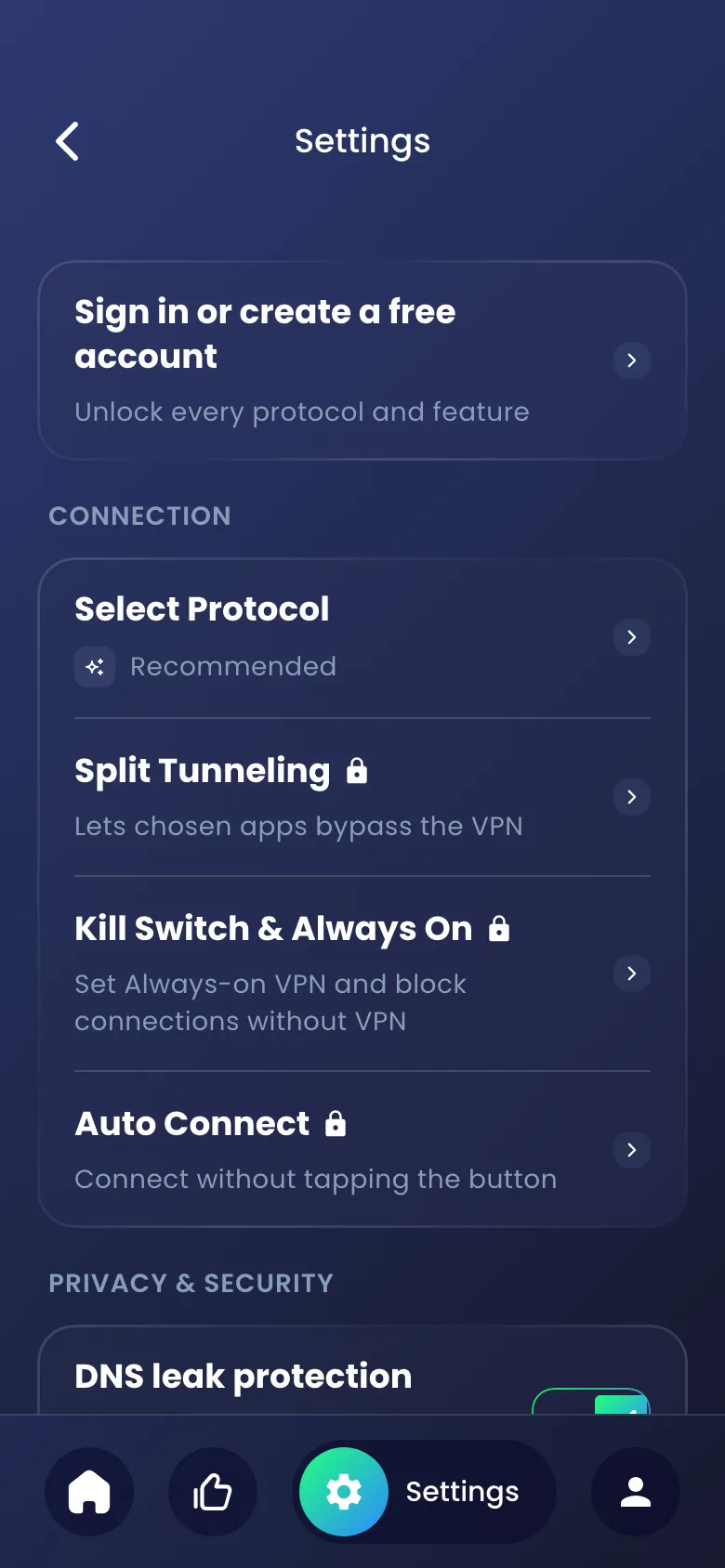
Kill Switch & Always On needs a free Tunnexa account. Guests see a small lock next to it.
It sits in the Connection group of Settings. Tapping it opens Android's VPN settings, not a Tunnexa screen.Settings›Kill Switch & Always On
Android lists every VPN app on your phone. Open Tunnexa's options.
Android now keeps Tunnexa as the VPN that should always be running.
This is the kill switch. Android may ask you to confirm. From now on, nothing leaves your phone outside the tunnel.
Menu names vary by phone. These are the usual paths:
Then tap the gear next to Tunnexa. Block connections without VPN is part of Android 8.0 and later.
The first time you open Tunnexa, you can tap Skip and connect as a guest, or sign in. Guests get the free servers and DNS leak protection. Kill Switch & Always On needs a free account, which takes an email code, or one tap with Google or Apple. No card, no trial.
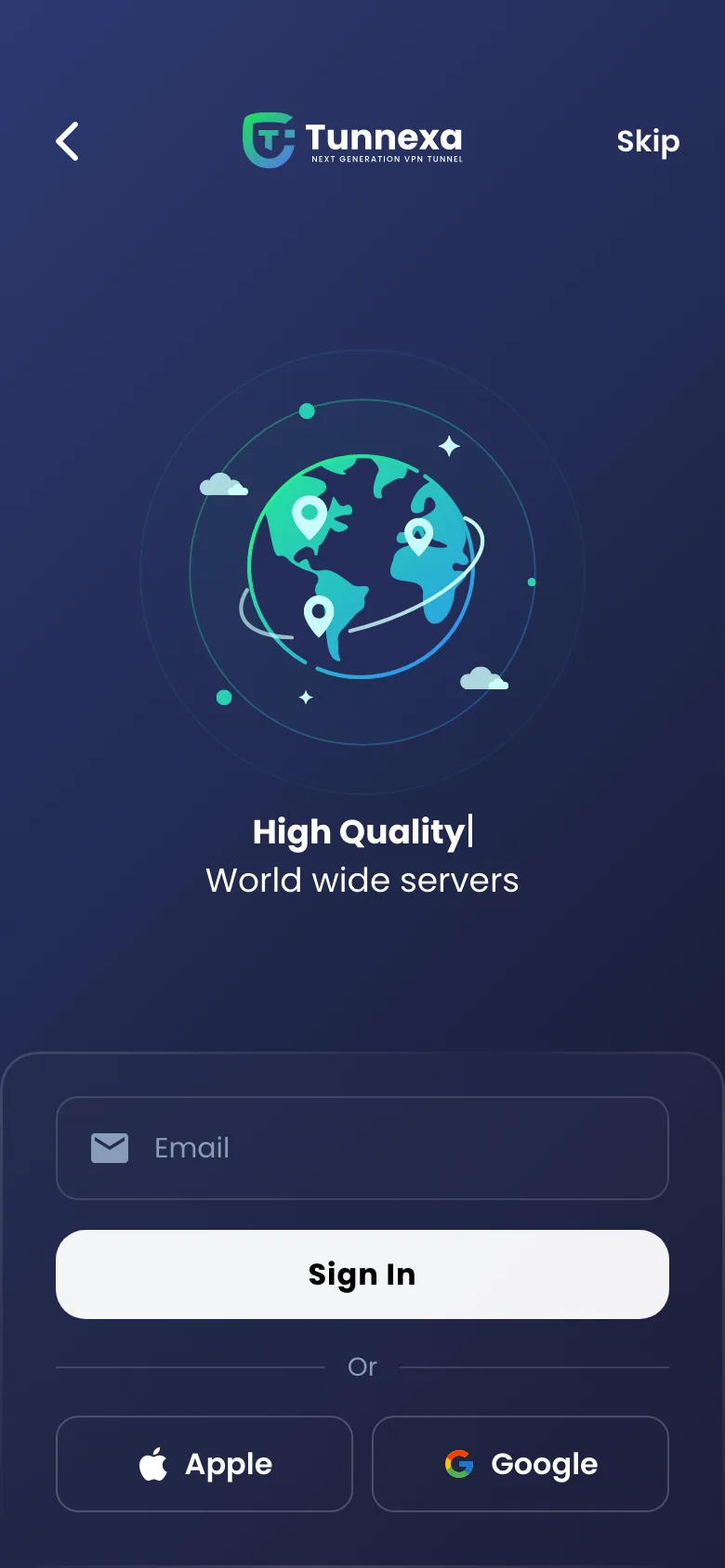
 Sign In to use Kill Switch & Always On
Sign In
Sign In to use Kill Switch & Always On
Sign In
A kill switch is a safety net, not a force field. Here is where it stops.
Turn off Block connections without VPN, or make another VPN app always-on, and the safety net is gone. Android allows one always-on VPN at a time.
With blocking on, tapping disconnect in Tunnexa leaves your phone with no internet until you connect again or switch the setting off. That's the point, but it catches people out.
We send you to the right switch. Android does the blocking, by its own rules, so we can't promise more than your phone's version of Android does.
A kill switch stops leaks when the tunnel drops. It doesn't hide who you are from the sites and accounts you sign in to.
Still unsure? Write to us at support@tunnexa.com.
A kill switch blocks your internet connection whenever the VPN drops, so apps can't send data outside the encrypted tunnel. On Android, the setting that does this is called Block connections without VPN.
Yes. Android 8.0 and later has Block connections without VPN in each VPN app's settings, next to Always-on VPN. Tunnexa's Kill Switch & Always On opens those settings for you.
Block connections without VPN is doing its job: no VPN, no connection. Connect Tunnexa again, or turn the setting off in Android's VPN settings.
Yes. Kill Switch & Always On is free with a Tunnexa account. Sign in with an email code, Google or Apple. Guests, who tapped Skip, see a lock on it.
Not usually. Always-on VPN already asks Android to keep Tunnexa running. Auto Connect is the lighter option if you want Tunnexa to connect when the app opens or be ready when the phone starts, without blocking anything.