

How to sign in to Tunnexa with email, Google or Apple
Open Settings and tap Sign in or create a free account. Enter your email and type the 6-digit code we send you, or tap Apple or Google. There's no password, and the same steps create a free account if you don't have one yet.
 No password to remember
- Free, no payment details
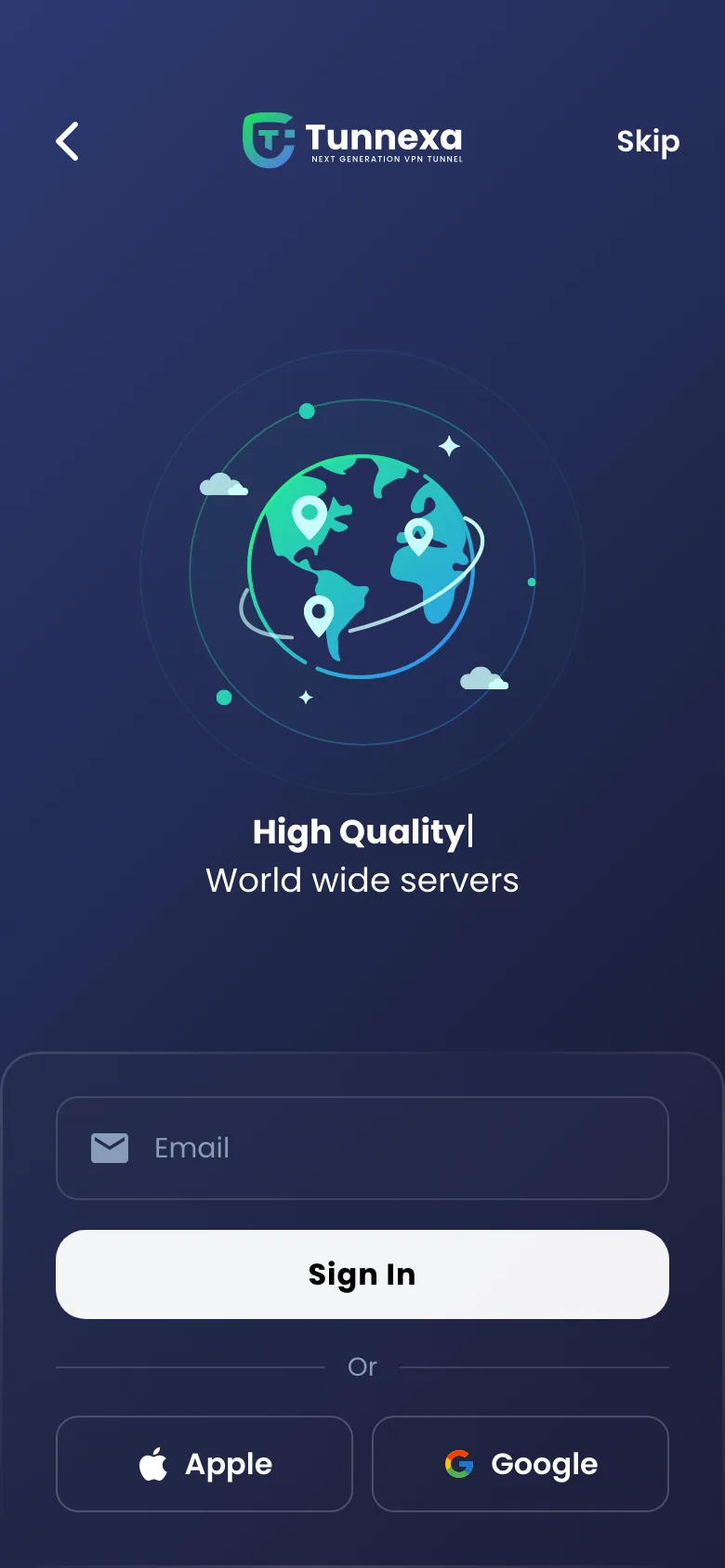
You don’t need an account to use Tunnexa, but a free one adds more protocols and privacy tools. Signing in uses a one-time code or your Google or Apple account. There’s no separate sign-up form.
Where to sign in
You’ll find the sign-in screen in four places:
- the first screen after you install Tunnexa
- the top card in Settings, which says “Sign in or create a free account”
- the Account button, the person icon at the right of the bottom bar
- any locked feature: tap it, then tap Sign In on the “Sign In to use” card
Sign in with an email code
- Type your email address in the Email field and tap Sign In.
- The screen shows “We’ve sent code to:” with your address. Check your inbox for a 6-digit code.
- Type the code into the six boxes, or paste it. Tap Sign In.
That’s it. If the email is new to us, the same code creates your free account. Made a typo? Tap the email address under “We’ve sent code to:” to go back and fix it.
Sign in with Google or Apple
Below the Sign In button, after “Or”, there are Apple and Google buttons. Google opens your phone’s account picker. Apple opens Apple’s own sign-in page. Either way, Tunnexa only receives your email address to set up the account, never your Google or Apple password.
If you see “Couldn’t complete Google sign-in. Please try again.” or “Apple sign-in failed. Please try again or use your email.”, the email code works on every phone.
What a free account adds
Guests get the free locations, three protocols and DNS leak protection. Signing in adds:
- OpenVPN TCP, AmneziaWG and Stealth, for all six protocols
- Kill Switch & Always On
- Auto Connect
- Ad & Tracker Shield
- Split Tunneling
We don’t ask for a card or a name, and there’s nothing to cancel. See what’s free in Tunnexa.
If the code doesn’t arrive
- Look in your spam, junk and promotions folders.
- Check the address for typos by tapping it.
- Under the code boxes, “Didn’t receive the code?” counts down from a minute. When it shows Resend, tap it for a new code.
- Still nothing? Use Google or Apple instead, or email support@tunnexa.com.
Signing out and deleting your account
Open Account and tap Sign out. Features that need an account stay locked until you sign in again, and the VPN keeps working as a guest.
Delete account on the same screen removes your account and its data for good. It can’t be undone. Our Privacy Policy lists what an account keeps.
Sign-in questions
Still unsure? Write to us at support@tunnexa.com.
Do I need a password for Tunnexa?
No. Tunnexa signs you in with a 6-digit code sent to your email, or with your Google or Apple account. There is no password to create or forget.
I didn't get my Tunnexa sign-in code. What now?
Check your spam and promotions folders, and make sure the email is spelled right. When the timer runs out, tap Resend. If it still doesn't arrive, sign in with Google or Apple, or email us.
Is a Tunnexa account free?
Yes. A free account adds every protocol, Kill Switch & Always On, Auto Connect, Ad & Tracker Shield and Split Tunneling. We don't ask for payment details.
What happens when I sign out?
Tunnexa keeps working as a guest. Features that need an account stay locked until you sign in again.
Signed in? Manage the phones on your account in Connected Devices, or turn on the kill switch and Split Tunneling.