


To set up a VPN on Android, install a VPN app from Google Play, open it, tap connect, and accept Android’s connection request. That’s the whole job.
What slows people down is the prompts. Android asks a couple of serious-sounding questions on the way, and one of them says the app can “monitor network traffic”. This guide goes through each screen in order, explains it in plain words, and tells you what we’d tap.
The screenshots are from Tunnexa, because it’s our app. The Android prompts look the same for any VPN.
Before you start
You need a phone or tablet on Android 7.0 or later. You can check under Settings › About phone. You also need a VPN app from Google Play, not an APK from a download site. A modified copy of a VPN app is a bad idea, because you’re about to send all your traffic through it.
You don’t need Android’s own VPN menu. The “Add VPN” option in your phone’s settings is for manual profiles, usually handed out by an employer. A VPN app sets everything up for you.
Step 1: Install the app from Google Play
Search for the app in Google Play, or follow the link on the provider’s own website so you know you have the real one. For Tunnexa, the Tunnexa download page goes straight to the right listing.
Before you tap Install, scroll to the Data safety section. It’s the developer’s summary of what the app collects and shares, and it’s worth thirty seconds. Recent Android versions don’t ask for permissions at install time, so nothing pops up yet. The questions come later, at the moment the app needs something.
Step 2: Skip, or sign in
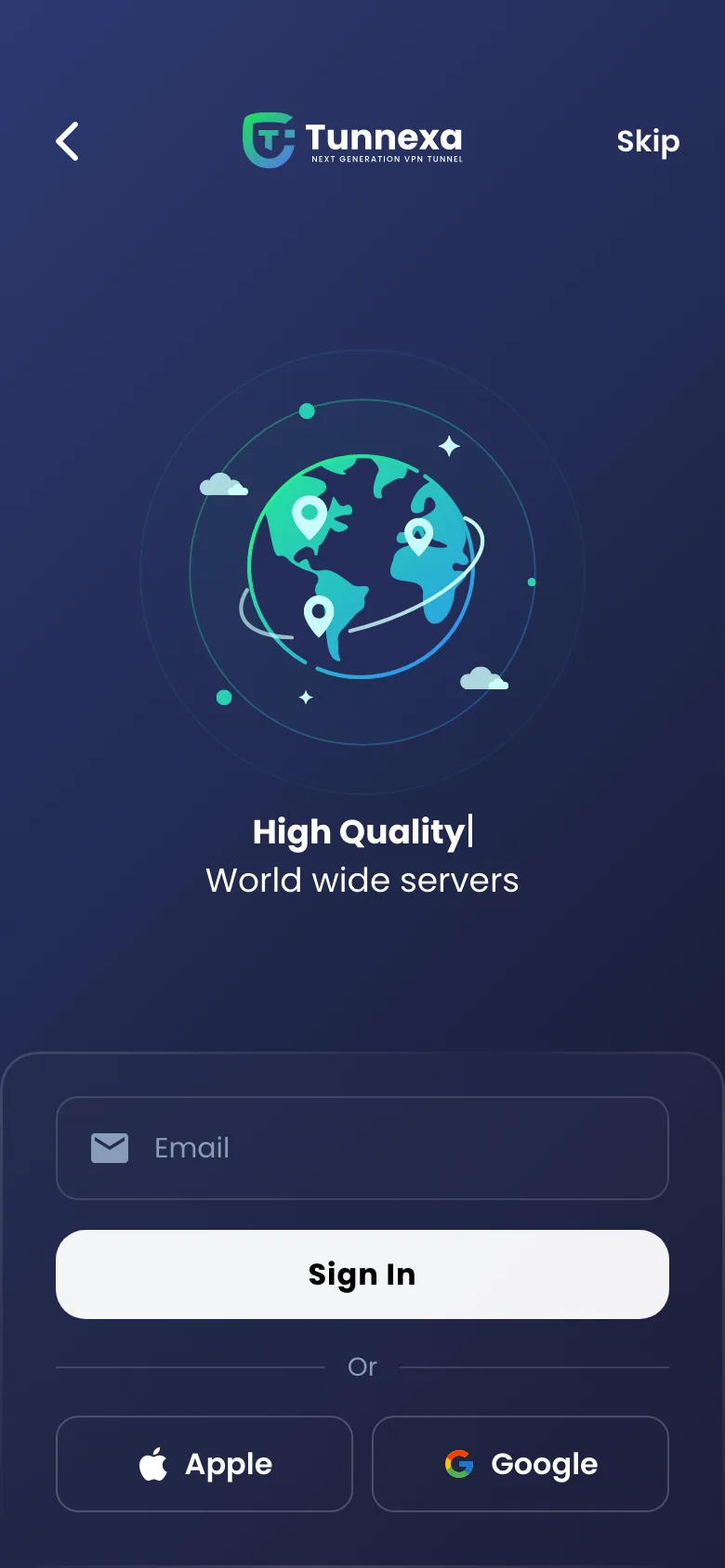
- Sends you a 6-digit code. No password to make up.
- Apple or Google
- Signs you in without the code.
- Skip (top-right corner)
- Connect as a guest. The one people miss.
The first time you open Tunnexa, you land on a sign-in screen. Plenty of VPN apps open this way, and it’s easy to assume you must make an account before anything works. You don’t.
What this screen means
Skip makes you a guest. You can connect straight away to the free locations, with the Recommended, WireGuard and OpenVPN UDP protocols and DNS leak protection on. Signing in, which is also free, adds the other three protocols plus Kill Switch & Always On, Auto Connect, Ad & Tracker Shield and Split Tunneling.
Our advice: tap Skip if you just want to see it working. You can sign in later from Settings, and the account costs nothing either way.
Step 3: Tap To Connect
On the home screen, tap the big round button labeled Tap To Connect. The server card above it shows which location you’ll use; tap the card to pick another. The first tap is when Android steps in, and depending on your Android version you’ll see one or two prompts before anything connects.
The notification prompt (Android 13 and later)
Since Android 13, apps have to ask before they post notifications, so this one may come first. A VPN uses its notification to show that it’s running and to give you a quick way back into the app.
Tunnexa connects whether you tap Allow or Don’t allow. We’d allow it. A visible notification is the easiest way to tell, at a glance, that the tunnel is up.
The VPN connection request
This is the one that matters. Android shows it the first time any app tries to start a VPN. The wording differs a little between phone makers, but it reads roughly like this:
Connection request
Tunnexa VPN wants to set up a VPN connection1 that allows it to monitor network traffic.2 Only accept if you trust the source.3
appears at the top of your screen when VPN is active.4
CancelOK
- 1Set up a VPN connection. Only one VPN runs at a time, so accepting switches off any other VPN app.
- 2Monitor network traffic. Android shows this line for every VPN app. It’s literally true: your traffic passes through the app on its way into the tunnel.
- 3Trust the source. Accept it for a VPN you chose and installed yourself, and nothing else.
- 4The key icon. Your sign that a VPN is running. It disappears when you disconnect.
“Monitor network traffic” is the line that makes people stop, and that’s fair. Any VPN sits between your phone and the internet, so you are trusting the company behind it. That’s why its no-logs policy matters more than its marketing. If you’re weighing that up, our guide on whether a free VPN is safe lists what to check.
Tap OK. You’ll only see this once per app, unless you clear the app’s data or use a different VPN app in between.
Heads up
If this prompt ever appears when you didn’t just tap connect in a VPN app you installed, tap Cancel. Tapping Cancel never breaks anything; the app simply can’t connect, and it asks again next time.
Step 4: Check that it worked
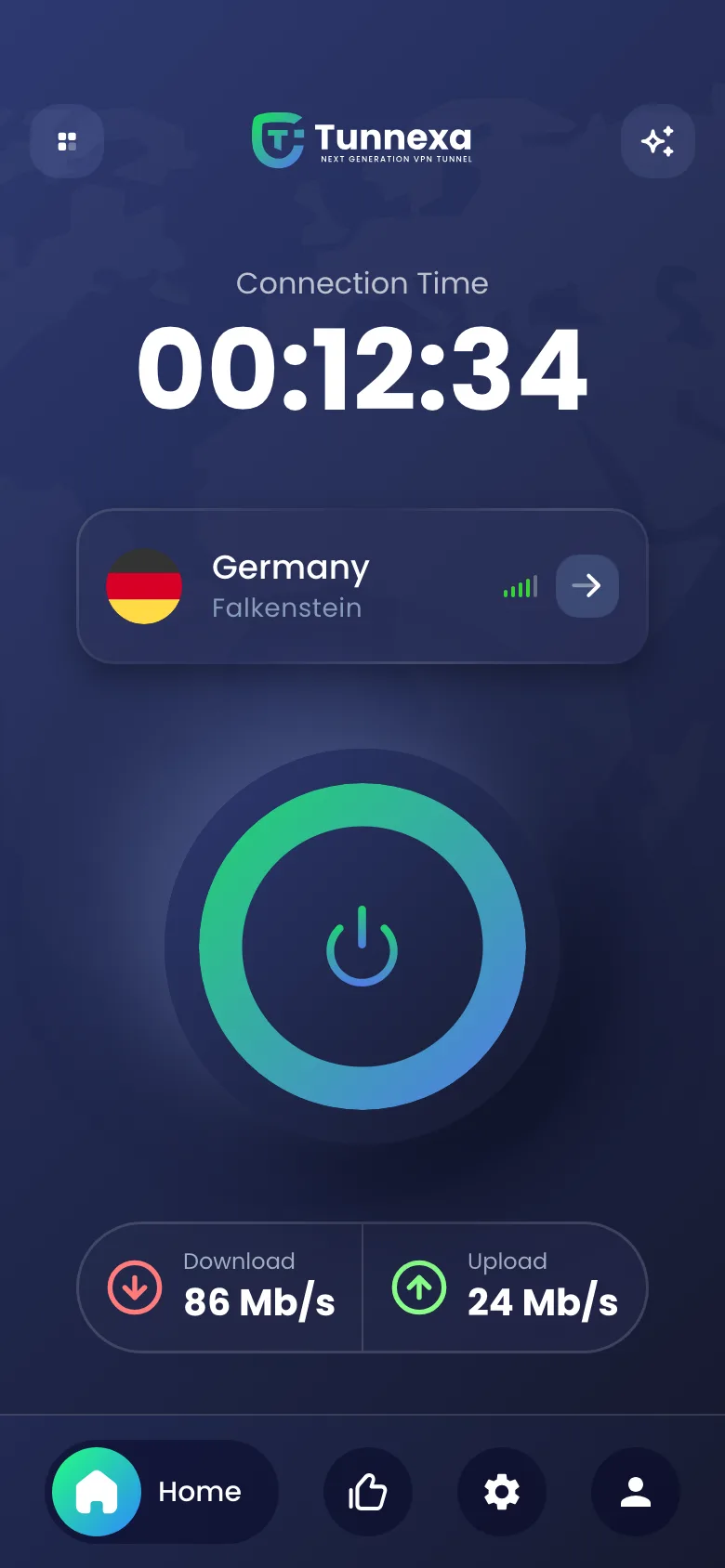
 The ring turns green and the Connection Time counter starts.
- The server card shows where your traffic now leaves the tunnel.
- A key icon sits in your status bar.
For a second opinion, open any “what is my IP” site in your browser. It should show the server’s location, not yours. To go one step further, a DNS leak test shows whether your lookups stay inside the tunnel too. We cover that in our guide to running a DNS leak test on Android.
Tip
Expect things to feel a touch slower. Your traffic now takes a detour through the server, so a nearby location usually feels quicker than one across the world. The server list shows ping in milliseconds before you connect; lower means closer.
Optional: keep the VPN on all the time
A VPN only protects you while it’s connected. If you’d rather not think about it, Android can keep it running and block anything that tries to go around it. We explain the Android side of this, along with per-app split tunneling, on our VPN for Android page.
In Tunnexa, sign in (it’s free), open Settings and tap Kill Switch & Always On. It opens Android’s own VPN settings, where you turn on two switches:
- Always-on VPN keeps the VPN running and starts it again if it stops.
- Block connections without VPN stops all traffic while the tunnel is down. This is the kill switch part.
If you’d rather find the settings yourself, the path depends on the phone. Menu names shift a little between Android versions.
| Phone | Where to find it |
|---|---|
| Pixel and most others | Settings › Network & internet › VPN, then the gear next to Tunnexa VPN |
| Samsung Galaxy | Settings › Connections › More connection settings › VPN, then the gear next to Tunnexa VPN |
Heads up
With Block connections without VPN on, your phone has no internet whenever the VPN isn’t connected. That’s the point, but it can trip you up on a hotel Wi-Fi login page, which has to load before any VPN can connect. If the page won’t open, turn the setting off, log in, then turn it back on.
One more thing: Android lets only one app hold Always-on VPN. If another VPN app already has it, turn it off in that app’s entry first.
Prompts you might see later
Once you’re set up, a few messages can pop up inside the app. None of them mean something is broken.
- “Sign In to use AmneziaWG”
- That protocol or feature needs a free account. Tap Sign In; there’s nothing to pay.
- “Disconnect VPN?”
- You can only change protocol while disconnected. Tap Continue, disconnect on the home screen, then pick the new one.
- “Connection limit reached”
- Your account is already connected on other devices. Tap Manage devices to sign one out.
- “No Internet Connection”
- The phone is offline before the VPN even starts. Check Wi-Fi or mobile data, then tap Retry.
Common questions
Do I need to add a VPN in Android’s settings myself?
No. A VPN app creates the connection for you. The “Add VPN” option in Android’s settings is for manual profiles, such as one from your workplace.
Is it safe to accept the VPN connection request?
Yes, for a VPN app you chose and trust. Android shows the same wording for every VPN, because any VPN app handles your traffic. Decline it if it appears out of nowhere.
Why is there a key icon in my status bar?
It means a VPN is active. It goes away when you disconnect. If you see it and didn’t connect a VPN, check which app is using it under your phone’s VPN settings.
Will a VPN drain my battery?
A little. Encrypting everything takes some extra work, mostly when you’re moving a lot of data. If battery matters on a long day, disconnect while you’re on your own home Wi-Fi.
Why won’t my VPN connect on some Wi-Fi?
Some networks block VPN traffic. Switching protocol usually helps: OpenVPN TCP on strict work, college or hotel Wi-Fi, and AmneziaWG or Stealth where VPNs are blocked. Our guide on why a VPN won’t connect on some Wi-Fi goes through it.